11 Files and Systems
In This Chapter
Every game and program we have built so far has no lasting memory. The moment you close the IDLE window, the variables are destroyed and your high score is gone forever.
To build useful software, we need our programs to remember things even after the computer is turned off. In this chapter, we will learn how to save data permanently. We will cover:
- Memory vs. Storage: Understanding RAM versus the Hard Drive.
- File System Best Practices: Slashes, spaces, and pathing best practices.
- File Objects: How Python accesses files on your hard drive.
- The Newline Character (
\n): How lines are handled in text files. - The Context Manager (
with open): The best way to handle files. - Reading & Writing with Files:
.read(),.readline(),.write() - String Parsing: Using
.split()and.join()to process data. - CSVs &
pathlib: Reading spreadsheets and checking if files exist. - The Project: The High Score Leaderboard.
11.1 Memory vs. Storage
When we are talking about computers, we need to understand the difference between Memory (RAM) and Storage (The Hard Drive).
RAM (Random Access Memory) is temporary memory that a program uses while it is running. Think of it like a whiteboard. It is incredibly fast. Your CPU can quickly scribble variables and lists on the whiteboard, erase them, and update them. But when the program closes, the whiteboard is wiped completely clean.
For permanent storage, a computer uses a hard drive or SSD (solid state drive). Think of Storage (Hard Drive / SSD) like a filing cabinet. It is much slower than the whiteboard, but whatever you put in the filing cabinet stays there until you remove it.
To make our data persistent (to make it last), we have to tell Python to take the data we want to save and write it to the hard drive. In programming, this saved data is called a File. You are probably already familiar with files. They are the documents, spreadsheets, and images you have on your computer. In this chapter, we will learn how to create our own files and read them back into our programs.
11.2 The File System
Before we create our first file, we need to understand how the Operating System (OS) organizes them. Computers use Directories (folders) and Paths to find files.
1. Backslashes vs. Forward Slashes
Windows computers separate folders using a backslash (\), like C:\Users\James\Documents. Mac and Linux computers use a forward slash (/), like /Users/James/Documents.
This uses to cause many issues for programmers. If you wrote a program on a Mac, it would crash on your friend’s Windows PC because the slashes were backwards! Thankfully, Python 3 has a built-in module called pathlib that automatically fixes slashes for you, no matter what computer the code is running on. In most cases, I would recommend using forward slashes (/) in your file paths. Nowadays, Windows will usually handle forward slashes correctly.
2. The Danger of Spaces
When naming files and folders for your code, it is a good idea to never use spaces. Spaces are helpful for humans to read, but computers don’t like them. To a computer terminal, a space means “end of command.” If you name a file my save data.txt, your computer may think you are trying to open three different files: my, save, and data.txt.
Instead you can use underscores: my_save_data.txt. While computers are normally smart enough to handle the spaces, sometimes they can lead to unexpected bugs.
3. File Extensions
Most files have an extension which helps both humans and the computer to know what is inside and how to read it. Here are some examples of common file extensions you may recognize:
.txt- Plain text files..pngor.jpg- Image files (used for pictures)..mp3or.wav- Audio files (used for music and sound effects)..py- Python source code (used for programs we write in Python)..exe- Executable files (used to run programs on Windows)..docor.docx- Microsoft Word documents (used for text documents with formatting).
There is no rule that says you must use a specific extension, but it is a good idea to use the correct one. If you save a text file as data.mp3, your computer will try to play it as music instead of opening it in a text editor.
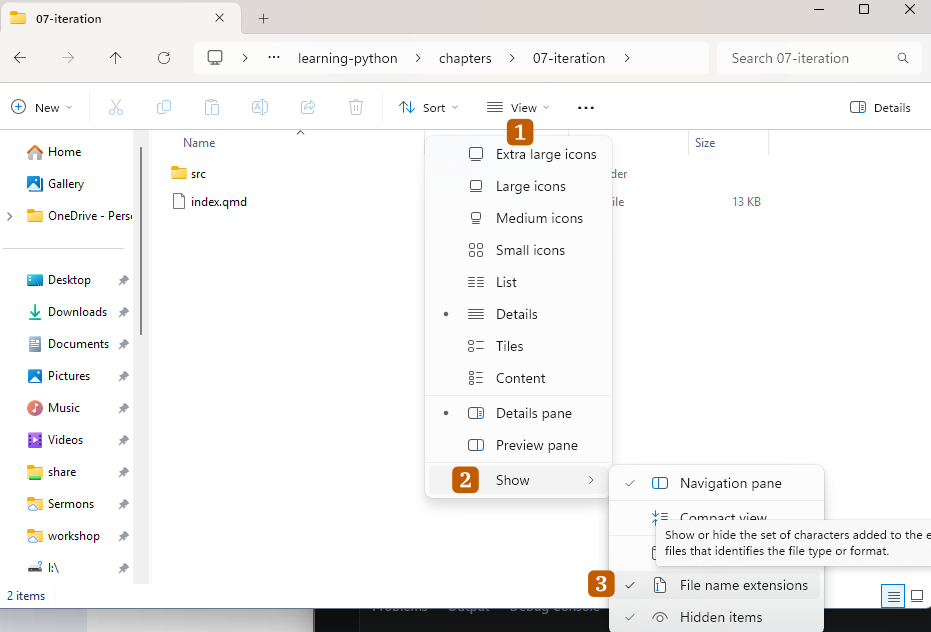
Windows will sometimes hide file extensions for common file types by default. If you are on Windows, I recommend turning on the option to show file extensions. This can be changed in the File Explorer under the View options menu.
11.3 Opening a File: The File Object
To read or write a file, you have to open it. We can use Python’s built-in open() function. We pass in the filename, and a “mode” telling Python what we want to do (like "w" for write). Look at the following code, but do not enter it!
# We pass open() the filename and "w" which gives us write access
save_file = open("data.txt", "w")

# We push text through the file object
save_file.write("Player Level: 10")

# Then we close the file when we are done.
save_file.close()
When you call open(), Python does not load the text file into a normal variable. Instead, it creates a File Object.
Think of a File Object as a pipeline or a bridge connecting your program’s memory to the computer’s hard drive. When you use .write(), you are pushing data down that pipe.
When you are finished, you must call .close(). In Python, closing the file is saving the file. Calling .close() tells the operating system: “I am done pushing data down the pipe. Lock the file and save the changes to the hard drive.”
The Danger of Manual Opening
Although the code above works, it is very dangerous! When you use open(), Python locks the file so no other program can touch it.
What if your program has a bug and crashes right after it opens the file? In that case, the .close() command will never run! The file becomes permanently locked and maybe corrupted because the pipeline was never safely disconnected.
The Safe Way: The Context Manager
To prevent file corruption, the recommended way to open a file is to use something called a Context Manager. It uses the with keyword.
A Context Manager opens the file, creates a temporary indented code block, and automatically closes and saves the file the exact moment the block ends. This will close the file for us even if the program crashes! Here is how it looks:
# THE SAFE WAY
# This opens the file 'data.txt' and connects it to the variable save_file
with open("data.txt", "w") as save_file:
    save_file.write("Player Level: 10")
    # After this line the blocks ends and 'with' closes the file for us!

# As soon as you un-indent, the file is safely closed and unlocked!
print("File saved successfully.")
11.4 The Invisible Newline Character (\n)
Before we start writing and reading files, we need to understand how computers handle line breaks. A line break is when you press the Enter key and the text starts on a new line.
When you look at a text document, you see lines of text stacked on top of each other. But computers do not see “lines.” They just see one massive, continuous string of characters.
A computer knows how to separate lines based on a hidden, invisible character called the Newline Character. It is typed as \n.
When you use print(), Python actually automatically adds a \n to the end of your text for you. But file objects will not add a \n so you have to add it yourself where you want it. If you .write() to a file, it writes exactly what you tell it to.
If you type this:
with open("items.txt", "w") as file:
    file.write("Sword")
    file.write("Shield")
    file.write("Helmet")
Your text file will look like this: SwordShieldHelmet.
If you want them on different lines, you must include the newline character manually!
with open("items.txt", "w") as file:
    file.write("Sword\n")
    file.write("Shield\n")
    file.write("Helmet\n")
11.5 Writing vs. Appending
When you open a file, you must tell Python what Mode you want to use. So far we have only been using the "w" mode or write mode.
Write Mode ("w")
Write mode is destructive. If the file does not exist, "w" will create it. But if the file does exist, "w" will instantly wipe the file completely blank before writing. Use "w" when you want to overwrite an old save file with brand new data or when creating a new file.
Append Mode ("a")
If you want to keep the old data and just add a new line to the very bottom of the document, use Append Mode.
with open("inventory.txt", "a") as file:
    file.write("Map\n")
This safely adds the map to the bottom of our list without destroying the other items we already saved earlier.
11.6 Reading Files ("r")
To load data from the hard drive back into Memory (RAM), we open the file in Read Mode ("r").
Python reads files using an invisible “cursor.” Just like a blinking cursor in a word processor, Python reads starting from wherever the cursor is currently sitting. There are a few different ways to read files, depending on how much data you want to load into memory at once.
1. Reading Everything at Once: .read()
If you want to get the text of the entire file into a single string variable, you can use .read(). This reads everything from the top of the file all the way to the bottom.
with open("items.txt", "r") as file:
    entire_document = file.read()
    print(entire_document)
2. Reading One Line at a Time: .readline()
If you only want the very first piece of data, you use .readline(). This command reads text until it hits the invisible \n character, and then it stops. The invisible cursor pauses at the start of the next line, waiting for another command.
with open("items.txt", "r") as file:
    first_item = file.readline()
    second_item = file.readline()
3. The Shortcut: for line in file
If you have a file with 100 high scores, typing .readline() 100 times is a terrible idea. Because a File Object acts like a sequence of lines, we can use a for loop to travel through it automatically!
with open("items.txt", "r") as file:
    # Python automatically calls readline() for every line in the file!
    for line in file:

        # We use .strip() to scrub away the hidden \n characters!
        item = line.strip()
        print(f"You are carrying a {item}.")
Using .strip() even when you may not need it is usually a good practice.
11.7 String Parsing: .split() and .join()
Text files only store strings. They cannot store Python Lists or Dictionaries. If we want to save a list, we need to figure out a way to store it as a string before writing it to the file.
The .join() method allows us to take a List, and glue it together into a single string using a specific character (like a comma).
knights = ["Arthur", "Gawain", "Lancelot"]

# Join the list together using a comma and a space!
csv_string = ", ".join(knights)

print(csv_string)
# Output: Arthur, Gawain, Lancelot
When we read that string back out of the text file later, we can use the .split() method (which we learned in Chapter 6) to chop it back into a proper Python List!
saved_string = "Arthur, Gawain, Lancelot"

# Chop the string at every comma!
restored_list = saved_string.split(", ")

print(restored_list[0])
# Output: Arthur
11.8 Checking if a File Exists (pathlib)
If you try to open a file in Read ("r") mode, but the file doesn’t exist yet, Python will crash with a FileNotFoundError.
Before we try to read a save file, we should check if it actually exists! We do this using the pathlib module.
import pathlib

# Create a Path object pointing to where the file should be
save_path = pathlib.Path("scores.txt")

if save_path.exists():
    print("Save file found! Loading data...")
    # Proceed to read the file...
else:
    print("No save file found. Starting a new game!")
11.9 The Project: The High Score Board
We are going to build a leaderboard system! This script will use everything we just learned.
- It will ask the player for their name and score.
- It will join them together into a comma-separated string (a
.csvformat). - It will Append (
"a") that string to a file. - It will safely Read (
"r") the file line-by-line, splitting the commas back apart, to print a formatted leaderboard!
Type this code into a new file and save it as leaderboard.py. Run it multiple times to watch the file grow!
import pathlib

print("--- ARCADE LEADERBOARD ---")

# 1. Gather the data
player_name = input("Enter your name: ")
player_score = input("Enter your score: ")

# 2. Format the data as a CSV string (Name,Score)
csv_line = f"{player_name},{player_score}\n"

# 3. APPEND the new score to the file
# (If scores.csv doesn't exist yet, "a" mode will create it automatically!)
with open("scores.csv", "a") as file:
    file.write(csv_line)

print("\nScore saved successfully!\n")
print("==========================")
print("       HIGH SCORES        ")
print("==========================")

# 4. READ the file to display the leaderboard
save_path = pathlib.Path("scores.csv")

if save_path.exists():
    # Open safely in read mode
    with open("scores.csv", "r") as file:

        # Iterate through the file line-by-line
        for line in file:
            clean_line = line.strip() # Remove the \n

            # Chop the string back into a list! [name, score]
            data_list = clean_line.split(",")
            name = data_list[0]
            score = data_list[1]

            print(f"{name.upper()} ...... {score} pts")
else:
    print("Error: Leaderboard file missing.")
After you run this code, look in the folder where you saved your python script. You will see a brand new scores.csv file sitting right next to it! You can even open it in Notepad or Excel to see the raw data!
Challenges
Ready to test your knowledge of the file system? Try these challenges!
Challenge 1: The Safe Loader
Write a short script from scratch. Import the pathlib module. Ask the computer to check if a file named secret_level.txt exists.
If it does, open it in read mode and print the contents. If it does not exist, use an else statement to open it in write mode and create the file yourself, writing the text "You found the secret!" inside it.